
Anúncios
How to Choose Between Recovery Software and a Lab
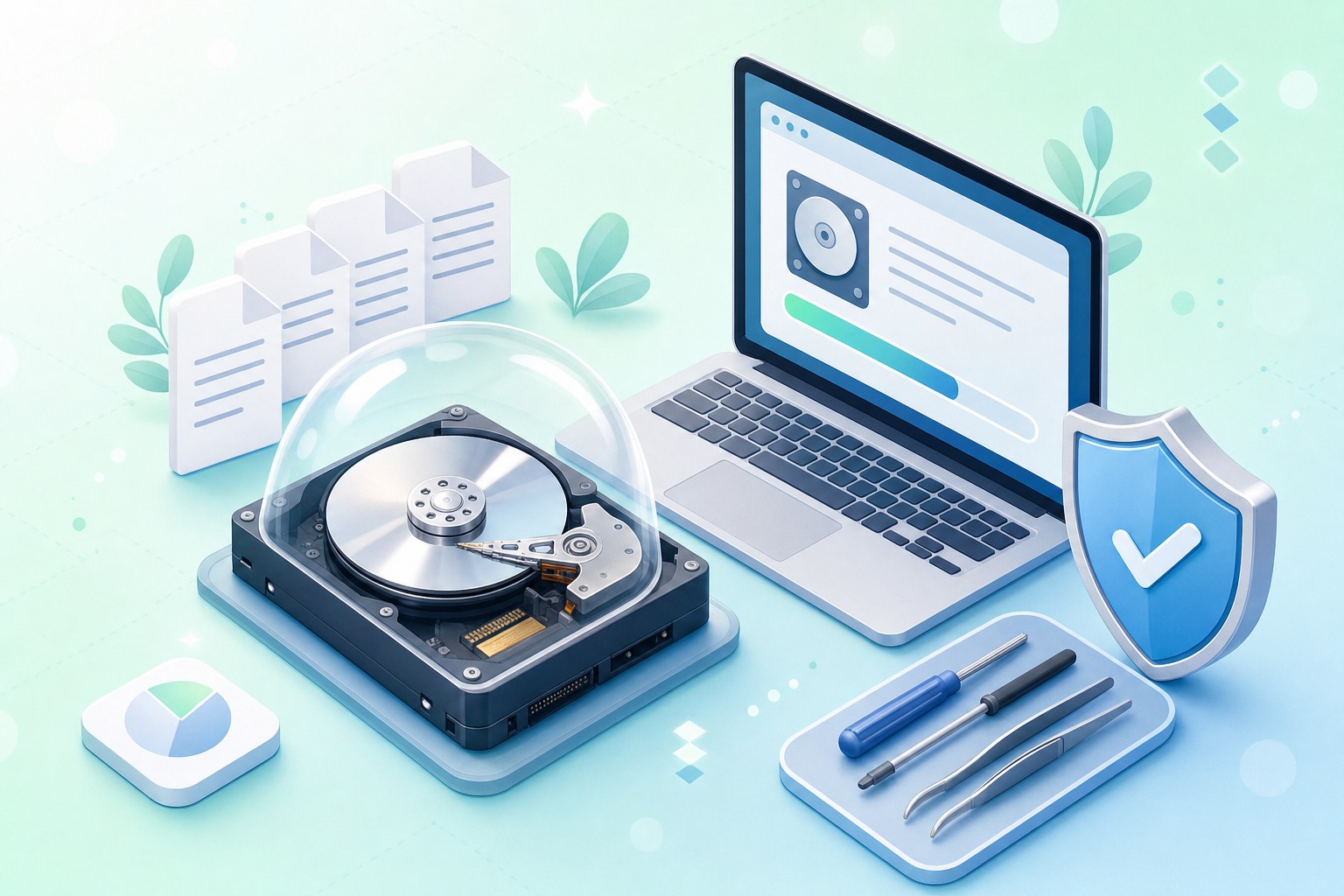
Losing files can feel urgent, and that urgency often pushes people toward the first download or the first phone number they find. A short pause to understand what actually went wrong usually leads to a better decision and better odds.
Some situations are well suited to careful do-it-yourself recovery with software. Others involve hardware damage where every extra power-on can make things worse, and a professional lab is the more sensible route. The challenge is telling these situations apart calmly.
This guide organizes the decision into practical steps: identifying the type of failure, spotting the signs that call for caution, understanding what labs do and how they price work, and weighing how much the data truly matters to you.
Start With the Failure Type: Logical or Physical
Most recovery decisions begin with one question: is the problem logical or physical? A logical failure means the hardware works, but the data has been deleted, overwritten in the file table, formatted, or corrupted. A physical failure means a component of the device itself is damaged.
Logical problems are where recovery software tends to help most. When a file is deleted, the operating system often marks its space as available rather than erasing it right away. Until new data lands on that space, a scanning tool may be able to reconstruct the file.
Physical problems are different. A worn read head, a seized motor, a damaged circuit board, or a failing SSD controller cannot be fixed by software running on your computer. In these cases, scanning tools may stress the device further without reaching the data at all.
Many real cases blend both types, such as a drive with a few weak sectors and a corrupted folder structure. When you cannot tell which category applies, it is reasonable to treat the situation as potentially physical and proceed with more caution rather than less.
Signs That a Careful DIY Attempt Is Reasonable
DIY recovery is often a sensible first step when the device behaves normally and the problem clearly came from something you or the system did, rather than from the hardware itself. These are the patterns that usually point in that direction.
- Accidental deletion: You deleted files or emptied a trash folder, and the drive still mounts, reads, and responds at normal speed without unusual noises or errors.
- Quick-formatted memory card or USB stick: A camera or computer prompted you to format, the card still appears normally, and nothing new has been saved to it since.
- Drive detected and sounding healthy: The disk shows up in your system’s disk utility with its correct capacity, spins quietly, and does not freeze the computer when connected.
- Lost partition after a software change: A partition disappeared after reinstalling an operating system or resizing volumes, but the physical disk itself still reports normally.
- Built-in recovery options available: Your files may still be in the Recycle Bin, macOS Trash, a cloud service’s recently deleted folder, File History, or a Time Machine backup.
- Data that is replaceable or low stakes: If losing the files would be inconvenient rather than painful, a measured DIY attempt is usually a proportionate response.
Before reaching for any recovery tool, check the simple places first. Microsoft’s support documentation describes restoring files from the Recycle Bin and File History, and Apple notes in its support pages that Time Machine can restore earlier versions of files and folders.
Cloud services also keep deleted items for a period. Apple describes a Recently Deleted album in Photos that holds items for about 30 days, and Google’s help pages explain that backed-up items in Google Photos trash typically remain for 60 days before permanent removal.
Warning Signs That Mean It Is Time to Stop
Some symptoms suggest that the device itself is struggling. In these situations, the most helpful action is often to disconnect the drive, power it down, and avoid further attempts until you have decided on a path.
- Clicking, grinding, or beeping sounds: Repetitive clicks or scraping noises from a hard drive often indicate head or motor problems that software cannot address and continued spinning may worsen.
- Drive not detected at all: If the disk does not appear in BIOS, Disk Management, or Disk Utility, the issue may involve electronics, firmware, or internal components rather than files.
- Burnt smell or visible damage: A burning odor, scorched components, or a power surge event suggests electrical failure, and reconnecting the drive could cause additional harm.
- Water, fire, or impact damage: Liquid exposure, heat, or a drop can affect platters, heads, and circuits. Powering on a wet or dropped drive is generally discouraged by recovery specialists.
- Failing SSD or controller symptoms: An SSD that suddenly shows the wrong capacity, appears read-only, disappears intermittently, or reports a generic name may have a controller or firmware fault.
- Encryption complications: Problems with hardware-encrypted external drives, lost keys, or damaged encrypted volumes add layers that consumer tools may not handle well without the original credentials.
- Rapidly worsening performance: A drive that becomes slower with each attempt, throws growing numbers of read errors, or freezes the system is signaling that time and access are limited.
None of these signs means the data is gone. They simply mean the odds usually improve when the device is handled in a controlled environment rather than through repeated experiments on a home computer.
With SSDs, there is one more factor to keep in mind. Many SSDs use a feature called TRIM that can clear deleted blocks in the background, so recovery of deleted files from SSDs is often less predictable than from traditional hard drives.
Why Repeated DIY Attempts Can Lower Professional Odds
It is natural to try one more scan, one more tool, or one more reboot. Unfortunately, with physically failing drives, each attempt may cause additional wear. A damaged read head, for example, can scratch the platter surface where the data physically lives.
Even on logically damaged drives, repeated actions can reduce what is recoverable. Installing recovery software onto the same drive, saving recovered files back to it, or running repair utilities that rewrite file structures may overwrite the very data you hoped to retrieve.
Disk repair tools such as file system checkers are designed to make a volume consistent, not to preserve every lost file. They can be useful in the right context, yet running them before copying data off a troubled drive may make later recovery harder.
A helpful mindset is to treat the original device as evidence to protect. Read from it as little as possible, write to it never, and stop as soon as symptoms suggest hardware trouble. That approach keeps every option open, including a professional one.
Getting the Most From Free and Trial Recovery Software
Recovery utilities range from free, open-source tools to commercial products with trial versions. Microsoft offers Windows File Recovery as a free command-line tool, and PhotoRec and TestDisk are well-known open-source examples. Check each official site for current features and supported systems.
Many commercial tools offer a free scan that shows which files they can find, then require a paid license to save them. Others cap free recovery at a small amount of data. These limits vary by product and change over time, so read the terms first.
A trial scan can be a useful diagnostic step. If a scan finds intact folders with correct file names and previews open correctly, the situation is likely logical and software may be enough. If previews are corrupted or the scan stalls, consider that a meaningful signal.
- Stop using the affected drive: Avoid saving anything new to it so deleted data is less likely to be overwritten while you plan.
- Install software on a different drive: Download and install any recovery tool on your main system disk or another device, never on the one you are recovering.
- Prepare a separate destination: Have an external drive with enough free space ready so recovered files are always written somewhere other than the source.
- Consider imaging first: Some tools can create a full sector-by-sector image of a healthy-seeming drive, letting you scan the copy instead of repeatedly reading the original.
- Preview before paying: Use the scan results and file previews to judge whether a paid license is likely to deliver what you actually need.
- Definition of success: Ask whether success means any recovered data or the particular folders and file types you identified as essential.
- Fees that still apply: Confirm whether evaluation, expedited handling, shipping, or new storage media are billed regardless of the outcome.
- Ability to review results first: Many providers share a file list of what was recovered so you can verify it before paying, which is worth requesting.
- Handling of the original device: Check whether the failed drive is returned, stored for a period, or securely disposed of, and what that costs.
- Retention of your recovered data: Ask how long the lab keeps a copy of your data after delivery and how that copy is eventually deleted.
- Clear, written quotes: Look for a provider that explains the diagnosis, the proposed work, and the total cost in writing before asking for authorization.
- Privacy and confidentiality terms: Review how your data is accessed, who can view it, and whether the provider will sign a confidentiality agreement for sensitive material.
- Chain of custody: Ask how devices are logged, tracked, and stored while in the lab, especially if the data is business, legal, or medical in nature.
- Independent reviews: Read feedback across several platforms, paying attention to how the provider responds to complaints rather than only to the star rating.
- Verified certification claims: If a provider cites security audits, clean-room classifications, or industry certifications, confirm them through the issuing organization where possible.
- Honest communication about odds: Reputable labs tend to describe outcomes in terms of likelihood, and they are usually cautious about promising specific results before diagnosis.
DIY Software and Professional Recovery Side by Side
Seeing the two approaches next to each other can make the trade-offs clearer. Neither is universally better; each fits different symptoms, budgets, and levels of risk tolerance. The table below summarizes the most common differences in general terms.
| Factor | DIY Recovery Software | Professional Recovery Service |
|---|---|---|
| Best suited for | Logical problems such as deletion, formatting, and lost partitions on healthy hardware | Physical damage, severe corruption, failed SSDs, and high-value data |
| Typical cost | Free tools exist; commercial licenses vary by product | Commonly quoted from tens to well over a thousand dollars, varying by case and region |
| Equipment | Your own computer and a spare destination drive | Clean environments, hardware imagers, donor parts, specialized firmware tools |
| Risk to the device | Low on healthy drives; higher if hardware is failing | Generally lower, since work is done in controlled conditions |
| Turnaround | Hours, depending on drive size and scan depth | Days to weeks; faster service is often offered at extra cost |
| Privacy | Data stays in your hands | Data is handled by a third party, so confidentiality terms matter |
| Expertise needed | Basic comfort with installing and running software | None from you beyond describing the problem accurately |
One practical way to read this table is to start with the symptoms column you recognize, then weigh cost and privacy. If the hardware seems healthy and the data is modest in value, software is often a proportionate first attempt.
If the hardware shows warning signs or the data is irreplaceable, the higher cost of a lab may be easier to justify, especially compared with the cost of losing access permanently after an unsuccessful home attempt.
What Happens Inside a Professional Recovery Lab
Understanding the general workflow of a recovery lab can make quotes and timelines easier to interpret. While each provider has its own process, most follow a similar sequence that begins with diagnosis and ends with returning recovered data on new media.
The first stage is usually an evaluation. Technicians examine the device, identify the failure type, and estimate what is needed. For hard drives with internal damage, the drive may be opened in a clean room or clean bench, where filtered air reduces dust contamination.
When components such as read heads or circuit boards have failed, labs may use compatible donor parts from matching drive models. Finding an exact match can take time for older or less common devices, which is one reason turnaround estimates vary widely.
A central step is imaging: copying the raw contents of the device onto healthy storage using specialized hardware that can handle unstable sectors gently. Recovery work then happens on the image, which limits stress on the original and allows multiple reconstruction attempts safely.
SSDs, Phones, and Encrypted Devices
Flash-based storage often requires different techniques, such as working with controller firmware or, in some cases, reading memory chips directly. Results depend heavily on the device design, and some modern hardware encryption can limit what any lab can retrieve.
For encrypted drives, a lab can typically recover the encrypted data, but you will usually still need the password, recovery key, or original credentials to make it readable. Having that information ready before sending a device can save time.
How Professional Recovery Pricing Usually Works
Pricing is one of the least standardized parts of the industry. Commonly quoted figures range from tens of dollars for simple logical cases to well over a thousand dollars for complex physical work, and the range varies considerably by provider and region.
Many providers begin with an evaluation. Some offer it free, others charge a fee that may be credited toward the recovery, and some offer paid expedited evaluations. Ask clearly what the evaluation includes and whether it produces a written quote.
After diagnosis, prices are usually tiered by severity. The general pattern below reflects how many providers describe their structure, though the labels, boundaries, and amounts differ between companies and should be confirmed directly.
| General Tier | Typical Situation | What Often Drives the Cost |
|---|---|---|
| Logical | Deleted files, formatting, corrupted file systems on working hardware | Drive capacity, file system complexity, and time spent reconstructing data |
| Moderate physical | Bad sectors, firmware faults, or electronic issues not requiring the drive to be opened | Specialized tools, firmware work, and imaging time on unstable media |
| Severe physical | Head failure, motor problems, or internal damage needing clean-room work | Donor parts, clean-room labor, and the number of attempts required |
| Complex or specialty | RAID arrays, servers, encrypted devices, flash chip work, fire or water damage | Number of drives, custom engineering, and additional handling steps |
Extra charges may apply for rush service, return media, shipping, or larger capacities. Asking for a written, itemized quote before authorizing work helps you compare offers fairly and avoid surprises once the job is underway.
Reading the Fine Print on No Data, No Fee Policies
Many recovery companies advertise a “no data, no fee” or similar policy. In general, this means you do not pay the recovery charge if the lab cannot retrieve the data you need. The exact meaning, however, depends on each provider’s written terms.
Some policies define success as recovering any data at all, while others refer to specific files you list in advance. Some still charge evaluation, shipping, or return media fees even when recovery is unsuccessful. Reading the terms carefully prevents misunderstandings later.
A clear, plainly written policy is a good sign in itself. If a provider is vague about these points or reluctant to put them in writing, that is useful information as you compare your options.
How to Vet a Data Recovery Provider
Because you are handing over a device that may contain personal photos, financial records, or business files, choosing a provider deserves the same care as choosing any trusted service. A few consistent checks can help you separate careful operators from less transparent ones.
It also helps to check warranty implications. Some drive manufacturers address third-party recovery in their warranty terms, so reviewing the manufacturer’s support pages before sending a device out may be worthwhile if the drive is still under coverage.
For work devices, involve your employer’s IT department before doing anything. Company policies may require approved vendors, specific confidentiality agreements, or internal handling, and acting independently could create compliance problems even with good intentions.
Weighing What the Data Is Actually Worth to You
The technical diagnosis is only half the decision. The other half is personal: how much would it matter if these files were gone for good? Answering honestly helps you decide how much risk and cost are reasonable.
Sentimental data, such as family photos, videos of children, or messages from loved ones, often cannot be recreated at any price. For many people, that alone justifies a professional evaluation when the hardware shows any sign of physical trouble.
Business data has a value you can often estimate: hours needed to recreate documents, revenue tied to client files, or legal obligations to retain records. Comparing that figure with a quoted recovery price can make the choice more concrete and less emotional.
Replaceable data, such as downloaded software, streaming caches, or files already stored in email or cloud services, rarely warrants professional fees. Before paying anything, check whether copies exist elsewhere, including old devices, shared folders, or attachments you sent to others.
Matching Your Situation to a Sensible Next Step
Bringing the symptoms and the value question together, the table below offers a general starting point for common scenarios. It is not a substitute for a professional diagnosis, but it can help you decide where to begin.
| Scenario | Likely Failure Type | Suggested Starting Path |
|---|---|---|
| Files deleted, trash emptied, drive working normally | Logical | Check backups and cloud trash, then try reputable recovery software from another drive |
| Camera card formatted by mistake, card still readable | Logical | Stop using the card and run a recovery scan, saving results to a different device |
| Partition missing after OS reinstall | Logical | Consider partition recovery tools carefully, ideally after imaging the drive |
| Hard drive clicking, grinding, or not spinning | Physical | Power down and seek a professional evaluation |
| Drive not detected after a drop or power surge | Physical or electronic | Avoid repeated connection attempts and consult a lab |
| Laptop or drive exposed to water or fire | Physical | Do not power on; contact a professional service promptly |
| SSD shows wrong capacity or vanishes intermittently | Controller or firmware | Stop use and seek a lab experienced with flash storage |
| Encrypted external drive will not unlock | Mixed | Confirm credentials and manufacturer guidance, then consider professional help |
| Work laptop with lost client files | Varies | Contact your employer’s IT team before taking any action |
When a scenario falls between rows, let the value of the data break the tie. Low-stakes files on healthy hardware lean toward DIY, while irreplaceable files on questionable hardware lean toward an evaluation before any further attempts.
Remember that starting with a professional evaluation does not commit you to paying for full recovery. Many people use a quote simply to learn what is wrong, then decide calmly whether the cost makes sense for their situation.
Turning a Stressful Moment Into a Clear Plan
The most useful step is often the simplest one: stop writing to the affected device and take a moment to observe its behavior. Normal operation points toward careful software recovery, while unusual sounds or detection problems point toward a lab.
From there, weigh how much the files matter, read pricing and policy terms closely, and choose a provider you can verify. Whichever path you take, recovered files deserve a fresh home on healthy storage plus at least one separate backup.
Data loss is common, and many people recover more than they expected by staying patient. A regular backup routine, such as File History, Time Machine, or a trusted cloud service, can make the next scare far easier to handle.
Editorial Disclaimer
This article is for informational purposes only; worksboom.com is an independent editorial site not affiliated with any provider or platform mentioned. Features, prices, and policies change, so confirm details with official sources. Results vary; for critical, sensitive, or work data, consult a qualified professional and your employer’s IT policies.