
Anúncios
Smart backup choices for every budget and need
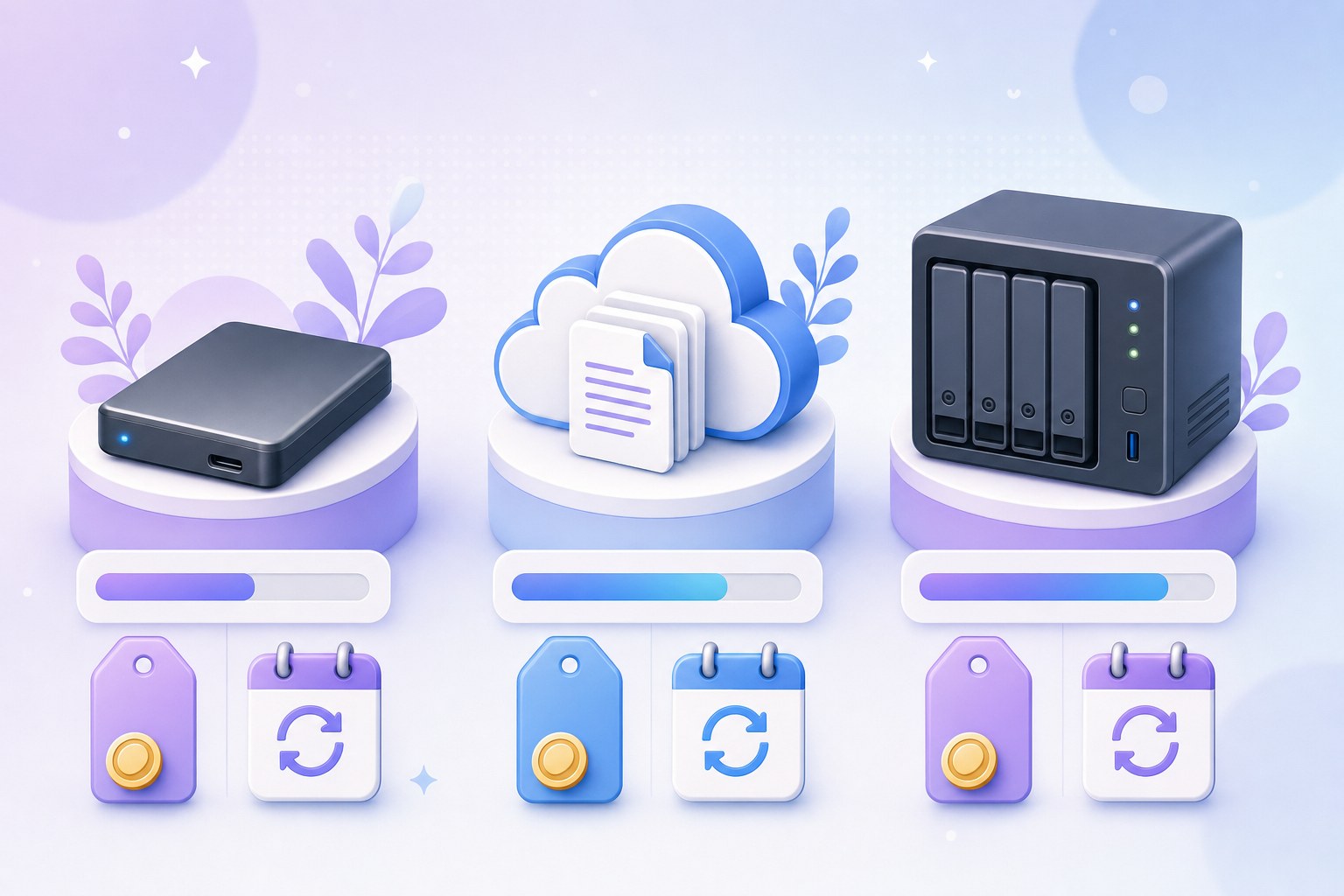
Most people think about backups only after something goes wrong: a phone slips into a lake, a laptop refuses to boot, or a folder of family photos simply vanishes. The good news is that protecting your files rarely requires a big budget.
No backup setup can promise that you will never lose a file. What a sensible plan can do is reduce the risk dramatically, so that a stolen device or a failed drive becomes an inconvenience rather than a disaster.
This guide walks through what you actually need to protect, what free options cover, when paying makes sense, and how to build a setup that matches your situation. The goal is a calm, realistic decision you can maintain for years.
Start by Estimating What You Actually Need to Protect
Before comparing plans, it helps to know how much data you really have. Many people overestimate or underestimate wildly, and that single number drives most of the cost. A quick check of your folders often takes less than fifteen minutes.
On Windows, you can right-click a folder and choose Properties to see its size. On a Mac, selecting a folder and choosing Get Info shows the same. Phones usually list storage use by category in their settings menus.
- Documents: Text files, spreadsheets, PDFs, and tax records are usually small, often just a few gigabytes even after many years of saving everything.
- Photos: A modern phone photo is commonly a few megabytes, so ten thousand pictures can easily reach 30 to 60 GB depending on format and resolution.
- Videos: Video is the heavyweight category, since a few minutes of 4K footage can take up gigabytes, and family video libraries often run into hundreds of gigabytes.
- Work projects: Design files, audio sessions, code repositories, and client archives vary enormously, so measure them directly rather than guessing their size.
- Things you can skip: Installed apps, system files, and downloaded media you can easily get again usually do not need a personal backup at all.
Once you add up the categories, add a growth margin of perhaps 30 to 50 percent for the next year or two. That rough total shows if a free tier could work or if you are firmly in paid or external-drive territory.
It is also worth separating files that are irreplaceable from files that are merely convenient. Wedding photos, scanned identity documents, and creative work deserve the most protection, while a music library you can download again matters far less.
What Free Cloud Tiers Really Give You
Almost every major provider offers a free storage tier, and for many people those tiers are where backups start. According to each provider’s plan pages, as of writing, the free allowances look roughly like this. Plans change, so check current details before deciding.
- Google Account: About 15 GB of free storage, shared across Gmail, Google Drive, and Google Photos, so email attachments and pictures draw from the same pool.
- Apple iCloud: About 5 GB free per Apple Account, which is commonly filled quickly by device backups and photos if iCloud Photos is turned on.
- Microsoft OneDrive: About 5 GB free with a Microsoft account, and Outlook.com attachments may count toward a shared storage limit as well.
- Dropbox Basic: About 2 GB free, which works well for a small set of important documents but rarely fits a photo library.
- Bundled extras: Some phone carriers, software subscriptions, and device purchases include extra cloud storage for a period, so check what you may already have access to.
These tiers are genuinely useful for documents, scanned records, and a curated folder of favorite photos. Combining two or three free accounts can stretch further, though juggling several logins adds complexity and makes it easier to forget something important.
The main limitation is size. If your photo and video library is larger than about 15 GB, free cloud storage alone usually cannot hold everything. That is the point where people start weighing an external drive, a paid plan, or both.
Keep in mind that free accounts can have conditions. Some providers note that inactive accounts may eventually be removed after long periods without sign-in, so logging in occasionally and reviewing each provider’s policy pages is a small but sensible habit.
Free Tools Already on Your Computer, Plus a One-Time Drive
Your computer likely already includes capable backup software at no extra cost. Pairing it with an external drive is one of the most budget-friendly setups available, because you pay once for hardware rather than every month for storage.
Time Machine on macOS
Apple notes in its support pages that Time Machine can automatically back up your Mac to an external drive, keeping hourly backups for the past day, daily backups for the past month, and weekly backups until the drive fills.
File History and Windows Backup
According to Microsoft’s support documentation, File History can save copies of files in your personal folders to an external drive, letting you restore earlier versions. Windows 11 also includes a Windows Backup app focused on syncing folders and settings with OneDrive.
External drives are a one-time purchase that commonly runs from roughly $50 to $120 for 1 to 2 TB, though prices vary by brand, region, and drive type. Many drives last several years, but none last forever, so plan to replace yours eventually.
Paid Cloud Storage: What the Monthly Fee Buys
Paid cloud plans add capacity and, more importantly, keep a copy of your files away from your home or office. If a fire, flood, or burglary takes both your computer and its external drive, an offsite copy may be what saves you.
Pricing tiers commonly quoted across major providers range from a few dollars per month for about 100 to 200 GB up to roughly $10 to $20 per month for around 2 TB. Prices vary by provider, region, and billing period, and annual billing is often cheaper.
| Factor | Free options | Paid options |
|---|---|---|
| Storage space | Roughly 2 to 15 GB per cloud account; external drive size limited by what you buy | Commonly 100 GB to several TB, depending on the plan |
| Offsite protection | Only for what fits in the free cloud tier | Full library can live offsite |
| Version history | Basic or limited on many free tiers; local tools like Time Machine and File History keep versions | Often longer version history and deleted-file recovery windows, varies by provider |
| Automation | Built-in tools automate well when the drive stays connected | Usually continuous in the background once configured |
| Ongoing cost | None, aside from a one-time drive purchase | Monthly or annual subscription that continues indefinitely |
| Family sharing | Usually one account per person | Many plans allow sharing storage with household members |
Some services are designed as sync and file-sharing platforms, while others are dedicated backup services that copy your whole computer. Both categories can be useful, and reading each provider’s help pages clarifies which approach a given plan actually uses.
When comparing plans, look beyond the headline storage figure. Check how long deleted files remain recoverable, whether older versions are kept, how restores work, and whether the plan covers one computer or several devices in your household.
Sync Is Not the Same as Backup
One of the most common misunderstandings is treating a synced folder as a backup. Sync services keep the same files identical across your devices, which is wonderfully convenient, but it also means changes travel everywhere at once.
If you delete a folder by accident, sync can propagate that deletion to every connected device. If ransomware encrypts your files, the scrambled versions may sync to the cloud as well. A true backup keeps separate copies and earlier versions you can roll back to.
- Sync is ideal for: Working on the same documents from a laptop, phone, and tablet without emailing files back and forth to yourself.
- Backup is ideal for: Recovering from deletions, corruption, hardware failure, or theft by returning to a copy from a specific earlier point in time.
- Trash and recycle bins help: Many sync services keep deleted items for a limited period, and the length varies, so check each provider’s help page.
- Version history matters: Look for a plan or tool that keeps older versions, since that feature is what turns a synced folder into something closer to a backup.
Many free sync tiers do include a recycle bin or limited version history, which offers some protection. Still, pairing sync with a separate backup, such as an external drive running Time Machine or File History, gives you a much stronger safety net.
A practical test is to ask what happens if you delete something today and only notice next month. If your setup could still bring that file back, you have real backup protection rather than simple mirroring.
The 3-2-1 Rule Without Breaking the Bank
The 3-2-1 rule is a widely shared guideline in the backup world. It suggests keeping three copies of your data, on two different types of storage, with at least one copy offsite. It sounds demanding, yet it can be surprisingly affordable.
- Three copies: The original files on your computer or phone count as the first copy, so you only need two additional copies beyond what you already have.
- Two types of storage: An internal drive plus an external drive or cloud account means a single kind of failure is less likely to affect everything at once.
- One offsite copy: A cloud account or a drive kept at a relative’s home or your workplace protects against fire, flooding, or theft at your main location.
- Start with essentials: If full 3-2-1 coverage feels too expensive, apply it first to your irreplaceable files, such as family photos and important records.
A budget version might look like this: your laptop, an external drive running the built-in backup tool, and a free cloud tier holding your most important documents. That arrangement costs only the drive and already covers many common risks.
As your library grows, you can upgrade the offsite part to a paid plan without changing the rest. The rule is a direction to move toward, not an all-or-nothing test you have to pass on day one.
Cost Scenarios for Different Kinds of People
Backup needs depend heavily on how you live and work. A student with a laptop and a phone has very different requirements from a family with years of videos or a small business handling client records. The table below sketches common starting points.
| Profile | Suggested setup | Rough annual cost range |
|---|---|---|
| Student | Free cloud tiers for coursework, plus a small external drive with Time Machine or File History | About $0 to $60 in the first year, mostly the drive; often near zero afterward |
| Family | Shared paid cloud plan for photos and videos, plus an external drive at home for full computer backups | Commonly about $60 to $200, varies by plan size and region |
| Freelancer | Paid cloud plan with version history, external drive with automated backups, and a second drive kept offsite | Commonly about $100 to $300, depending on project file sizes |
| Small business | Business-grade cloud or backup service, local backup device, documented restore process, and an IT contact | Varies widely, often several hundred dollars or more per year |
These figures are rough estimates, not quotes. Your actual cost depends on how much data you have, which provider you choose, local pricing, and whether you already own suitable hardware. Treat the ranges as a planning starting point only.
Small businesses carry an extra layer of responsibility, since client data, invoices, and legal records may be subject to retention rules. Talking with an accountant or IT professional about requirements specific to your industry is often money well spent.
Students can often stretch free tools the furthest, while families tend to benefit most from shared plans. Freelancers usually value version history and fast restores because a lost project file can mean missed deadlines and unhappy clients.
The Hidden Costs: Time, Upload Speed, and Restore Speed
The sticker price is only part of the story. A backup plan also costs time to set up, attention to maintain, and patience when something needs restoring. Factoring these in can change which option feels cheapest in practice.
- Initial upload time: Home internet upload speeds are often much slower than download speeds, so sending hundreds of gigabytes to the cloud may take days or even weeks.
- Data caps: Some internet plans limit monthly data, and a large first backup could push you over, so check your plan before starting a big upload.
- Restore speed: Downloading a full library from the cloud can be slow, while restoring from an external drive sitting on your desk is usually much faster.
- Maintenance habits: An external drive only helps if you plug it in regularly, so a drive that sits in a drawer for months offers limited protection.
- Your own time: Managing several free accounts or manual copies takes effort, and for some people a paid automatic service is worth it for peace of mind.
This is why many people combine local and cloud storage. The local drive offers quick restores for everyday mistakes, while the cloud copy covers bigger events. Each method covers weaknesses in the other at a modest combined cost.
If your upload speed is slow, consider prioritizing irreplaceable files for the cloud first and leaving easily replaceable media for later. Many backup tools let you choose folders, so the most important data reaches safety soonest.
Upload speed and restore time rarely appear on a pricing page, yet they shape how a plan feels in daily use. A slightly pricier option that restores quickly may serve you better than a cheaper one that takes days.
Privacy and Encryption Considerations
Handing your files to a cloud provider means trusting it with personal information, from family photos to tax records. Most major providers encrypt data in transit and at rest, but the details of who holds the encryption keys differ between services.
Some services offer end-to-end or zero-knowledge encryption, meaning only you hold the key. Apple, for example, describes an optional Advanced Data Protection setting for iCloud in its support pages. The trade-off is that losing your key or recovery method may make files unrecoverable.
- Turn on two-step verification: Protecting the account itself is one of the most effective steps, since a stolen password can expose everything stored there.
- Encrypt external drives: Built-in options such as encrypted Time Machine backups on Mac and BitLocker To Go on supported Windows editions can help protect a drive if it is lost.
- Store recovery keys carefully: Keep encryption passwords and recovery codes in a password manager or a secure written record, separate from the drive itself.
- Read the privacy policy: Check how a provider handles data, where it stores files, and what happens to your data if you cancel the plan.
For especially sensitive material, such as medical, legal, or client records, encryption before upload adds another layer. Work files may also be governed by your employer’s policies, so check with your IT team before copying them to personal accounts.
Finally, remember that privacy settings and encryption options change over time. Reviewing your account security settings once a year, alongside your storage plan, keeps both protection and cost in step with your current needs.
How to Test a Restore Before You Need One
A backup you have never restored from is, in a sense, a hopeful assumption. Testing a restore occasionally confirms that your files are really there, that they open correctly, and that you remember how the process works.
- Pick a sample: Choose a few files of different types, such as a document, a photo, and a video, ideally from different folders and dates.
- Restore to a new location: Restore copies into a separate test folder rather than overwriting the originals, so a mistake during the test causes no harm.
- Open every file: Confirm that each restored file opens properly and looks complete, since a file that exists but will not open offers little protection.
- Try an older version: If your tool keeps version history, restore a version from a few weeks back to confirm that earlier snapshots are really being kept.
- Note how long it took: Timing the restore helps you set realistic expectations for a larger recovery, especially when downloading from the cloud.
- Write down the steps: A short note on how to restore, stored somewhere you can reach without your main computer, makes a stressful day much easier.
Many people find that testing two or three times a year, perhaps when clocks change or at tax season, is easy to remember. Apple and Microsoft both describe restore steps for Time Machine and File History in their official support pages.
If a test reveals a problem, such as missing folders or a backup that stopped running months ago, that is good news in disguise. You found the gap while your original files were still safe and fixable.
Restore tests also reveal whether your backup includes everything you assumed it did. Many people discover that a folder on the desktop, an external project drive, or a phone’s photo library was never part of the routine.
A Simple Yearly Budget Rule of Thumb
There is no official formula for how much to spend, but a simple framework can help. One reasonable suggestion is to think about what it would cost, in money, time, and stress, to recreate or lose the files you care about most.
For many households, a budget of roughly the cost of one external drive per year, or a modest monthly cloud plan, tends to cover the essentials. If your files support your income, budgeting somewhat more for redundancy may be a sensible business expense.
- Under about 15 GB of important files: Free cloud tiers plus a built-in local backup tool may be enough for many people.
- Between about 15 GB and 1 TB: A one-time external drive combined with a small or mid-sized paid cloud plan often provides solid coverage.
- More than about 1 TB: Larger cloud plans or dedicated backup services, plus at least one external drive, are a common fit.
- Business or client data: Consider business-grade services and professional advice, since requirements may go beyond personal backup habits.
Revisit the budget once a year. Data tends to grow, prices shift, and providers change their plans, so a quick annual review keeps your setup aligned with your needs without overpaying for space you never use.
A helpful exercise is to imagine your main device disappearing tomorrow. List what you would miss most, then check whether each item has at least one copy elsewhere. Any gaps you spot are where your next dollar of backup budget belongs.
Building a Backup Habit You Can Keep
The best backup plan is usually the one you will actually maintain. A modest, automated setup that runs quietly in the background tends to protect more than an ambitious plan that gets abandoned after a few busy weeks.
Start this week by measuring your data, turning on your computer’s built-in backup tool, and choosing one offsite option, free or paid. Then schedule a short restore test on your calendar so the habit becomes routine.
No setup removes every risk, but each layer you add improves your chances of getting your files back when something goes wrong. With a few calm steps, most people can reach solid protection at a cost that fits comfortably in their budget.
Editorial Disclaimer
This article is informational only. worksboom.com is an independent editorial site not affiliated with Google, Apple, Microsoft, Dropbox, or other companies mentioned; plans and policies change, so confirm details on official pages. Results vary, so for critical or business data consider a qualified IT professional and your employer’s IT policies.