Anúncios
Email Inbox Cleanup and Organization: Tools and Habits You Can Use
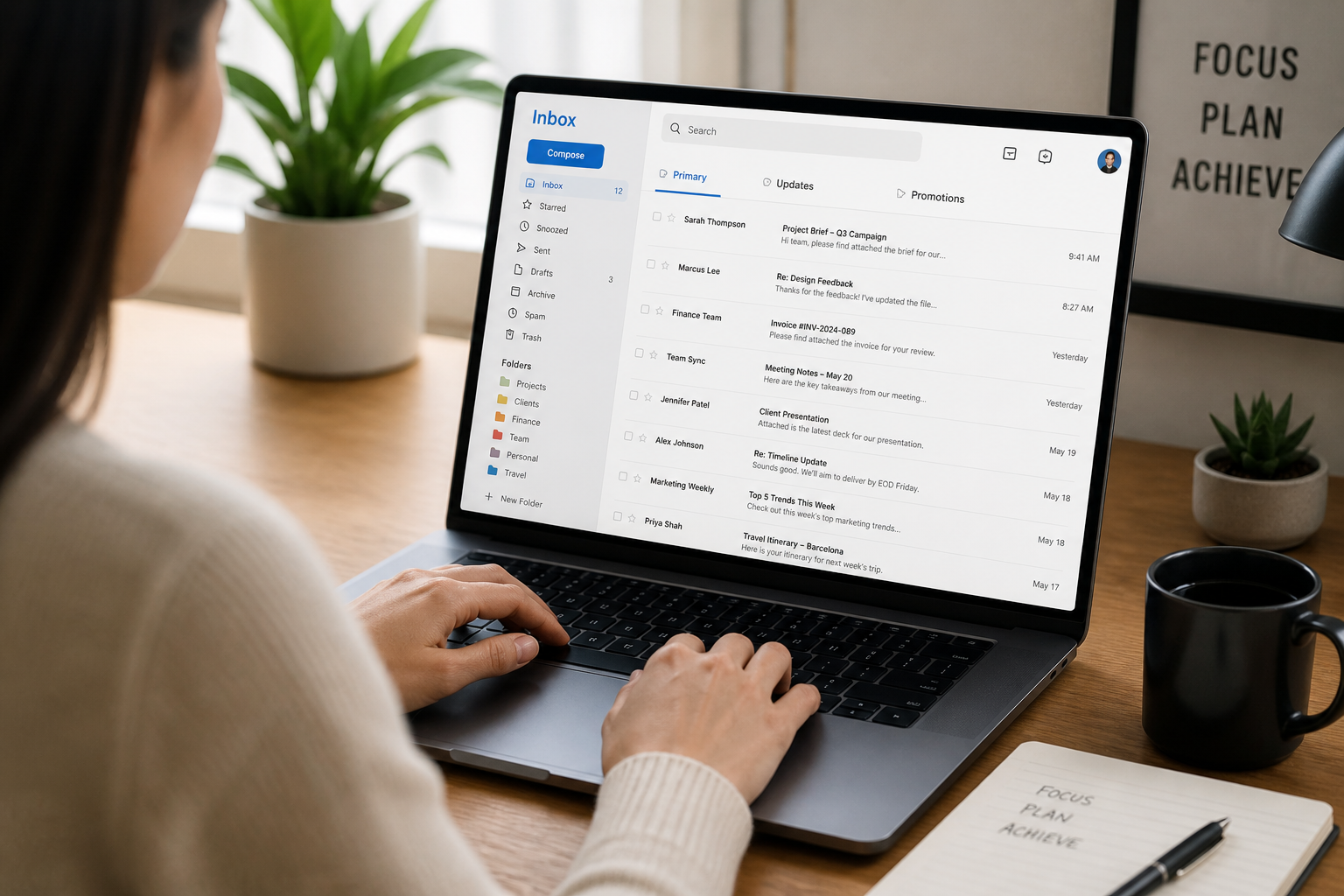
Managing your email inbox can quickly become overwhelming. With promotions, updates, social notifications, and genuine conversations all arriving in bulk, it’s easy for important messages to get buried. This guide walks you through actionable steps, effective habits, and a round-up of practical digital tools—so you can gain control and keep your inbox organized for the long term.
The Case for a Clean Inbox
An overloaded inbox leads to missed messages, unnecessary stress, and lost productivity. When emails pile up, you may waste minutes—or even hours—each day searching for information or trying to decide what’s important. By proactively organizing your inbox, you streamline communication and reclaim your focus. This makes it easier to spot what truly requires your attention and take action without distraction. Reducing inbox clutter not only boosts efficiency but can also lower anxiety linked to a constant influx of (often trivial) notifications.
Essential Steps to Begin Your Cleanup
Before diving into advanced tools or detailed folder structures, start with a systematic approach to decluttering. Use these initial steps to set a strong foundation for your ongoing organization:
- Set aside dedicated time for inbox cleanup—schedule 30–60 minutes without interruptions.
- Scan for obvious junk, redundant newsletters, or promotions and start deleting or archiving in batches.
- Sort emails by sender, subject, or date for faster scanning and bulk actions.
- Unsubscribe from old or irrelevant mailing lists directly or with cleanup tools.
- Flag or star messages needing a reply. Move these to the top of your workflow.
- Create basic folders or labels to start sorting emails you need to keep.
These steps are accessible to anyone, regardless of the size of your current mailbox or the email platform you use.
Unsubscribe Tools for Managing Mailing Lists
Mailing lists, newsletters, and promotional emails are some of the main culprits behind inbox overload. Rather than manually tracking down every unsubscribe link, specialized tools can streamline the process in bulk and keep your inbox lighter moving forward.
Popular unsubscribe and subscription management tools include:
- Unroll.Me – Quickly shows you all recurring emails you receive and lets you mass unsubscribe.
- Clean Email – Unsubscribes, blocks senders, and even automates future email cleaning.
- Leave Me Alone – Privacy-first tool to spot and cancel subscriptions across multiple accounts.
- Gmail’s native filter/unsubscribe suggestions – Google offers targeted unsubscribe nudges for newsletters you rarely open.
When choosing a tool, consider factors such as privacy policies, ease of use, compatibility with your email service (Gmail, Outlook, Yahoo, etc.), and recurring costs if applicable. For frequent senders or old email accounts, a one-time sweep with an unsubscribe tool can remove years’ worth of digital clutter in minutes. Remember, after unsubscribing, allow a week or two to see if unwanted mail stops arriving—some services take time to process opt-outs.
Creating an Effective Folder System
A thoughtful folder (or label) system is the backbone of a tidy inbox. The best structure is simple, covers your main email topics, and is easy to expand as your needs change. Here’s how to create a system that works for you:
- Start big, then get specific. For example, create folders like “Finance,” “Projects,” “Travel,” then add subfolders if needed (e.g., “Finance/Invoices”).
- Name folders for quick recognition. Use clear labels—“Bills” is better than “Miscellaneous 2017.”
- Use colors or icons if your email client supports them for visual cues.
- Avoid overcomplicating. Too many nested folders can slow down filing and retrieval. Stick to a system you’ll actually use.
For most individuals, 5–10 main folders is enough to handle typical work and personal email streams. Review and adjust your structure every few months to ensure it aligns with your changing needs.
Automating Email Sorting with Filters and Rules
Modern email services allow you to automate much of your organizational work using filters (also called rules in some clients). Filters can automatically sort incoming messages into folders, tag them, forward, or even delete based on criteria you choose.
- Create a filter to route newsletters to a “Read Later” folder for low-priority browsing.
- Automatically label bills or invoices by filtering emails with certain words in the subject line (“invoice”, “payment due”).
- Send social notifications to a “Social” folder, keeping your primary inbox clear of alerts.
- Highlight urgent emails from a boss or key collaborator by marking them as “Important” or using a specific color tag.
Setting up filters takes a little initial effort but pays off with reduced manual triage and faster daily processing. Many platforms let you apply a filter to old messages as well as new ones, helping you clean up backlog too.
Advanced Search and Cleanup with Email Operators
Most email services (Gmail, Outlook, Yahoo) support advanced search operators—special keywords that help you find and act on groups of messages quickly. Mastering a few of these can save hours during both initial cleanup and daily maintenance.
| Operator | Description | Example |
|---|---|---|
| from: | Find emails from a specific sender | from:[email protected] |
| subject: | Search emails with keywords in the subject | subject:invoice |
| older_than: | Locate emails older than a set time | older_than:6m |
| has:attachment | Filter messages with any attachment | has:attachment |
| is:unread | Show only unread messages | is:unread |
| label: | Find emails in a specific folder or with a label | label:Projects |
Try combining operators, such as from:amazon older_than:1y to find old purchase confirmations for easy deletion. Understanding these search shortcuts accelerates bulk cleanup and spot-checks.
Archive versus Delete: Making the Best Choice
When inboxes fill up, you may wonder whether it’s better to delete emails or simply archive them. Both options clean up your main inbox, but they have different purposes and effects.
- Archive: Moves a message out of the inbox, stores it for future reference, and keeps it searchable.
- Delete: Permanently removes an email, freeing up storage and ensuring it can’t be retrieved (after your service’s trash window passes).
When should you archive versus delete? Here are practical criteria:
- Archive any message you might need as future reference—receipts, contracts, insurance records—even if you don’t need it now.
- Delete clearly irrelevant email: expired offers, duplicate alerts, old social notifications, or spam.
- If in doubt, archive rather than delete. Searching for old emails often saves time later.
Most services have generous archive storage, so it won’t impact performance to hang on to some “just in case” information outside your primary inbox.
The Inbox Zero Approach: Habits That Work
Inbox Zero is about more than having zero messages in your inbox; it’s a method for handling email actively and confidently. Adopting even parts of this philosophy can cut your daily email time, ditch procrastination, and keep stress down.
- Set regular times—ideally two or three points daily—to process email, rather than reacting to every notification as it arrives.
- Touch every message once wherever possible: reply, delegate, archive, or delete—don’t leave it sitting unhandled.
- Use folders or flags to clearly separate messages that require action from those that don’t.
- Keep your inbox for true to-dos only. Move everything else out once handled or categorized.
For instance, when scanning email, you might reply to all quick requests at once, batch archive informational updates, and flag one or two tasks for follow-up this week. Over time, these habits keep your inbox manageable and restore email to its original, purposeful role.
Picking the Right Email Cleanup Tools
With dozens of apps and add-ons available, choosing the right cleanup helpers can be overwhelming. The right tool for you depends on your email habits, privacy needs, and platform. Here are practical factors and head-to-head examples to help decide:
| Tool | Best For | Key Features | Platform | Paid/Free |
|---|---|---|---|---|
| Unroll.Me | Bulk unsubscribing | Lists subscriptions, batch manage | Web | Free |
| Clean Email | Inbox cleaning, automations | Unsubscribe, rules, analytics | Web, mobile | Paid with free trial |
| Mailstrom | Bulk email action | Group by sender/subject | Web | Paid |
| Gmail Filters | Ongoing organization | Rules, auto-label, archive | Web, mobile | Free |
| Microsoft Outlook Focused Inbox | Sorting and prioritizing | Focused tab, sweep rules | Web, desktop, mobile | Free & paid |
For most personal users, starting with your email provider’s built-in tools works well. Add a third-party tool if you notice backlogs or need extra automation. Always review a tool’s privacy policy before granting inbox access.
Strategies for Ongoing Maintenance
Cleaning up your inbox once offers immediate relief—but the key is to prevent future buildup. Here are sustainable habits for ongoing email health:
- Unsubscribe as soon as you notice irrelevant mail—don’t wait for clutter to return.
- Regularly declutter folders: schedule a monthly review of archive, newsletters, or low-priority mail folders.
- Use filters to prevent new categories of clutter as your work, interests, or subscriptions change.
- Consider archiving or deleting all emails older than a set date (such as 2 years), unless needed for recordkeeping.
- Review your folder and label system quarterly to simplify and reflect your current workflow.
Each small, ongoing action saves you time in the long run by making sure your inbox never gets out of hand again.
Decision Tools: Building Your Personal Email System
Every email user’s needs differ. Business owners, freelancers, students, and casual users may all require tailored approaches. Use this criteria checklist to design your own effective system:
- How many separate inboxes do you manage? (Work, personal, newsletter, etc.)
- What are your most common types of emails? (Client requests, notifications, receipts, news, promotions)?
- Do you need to reference old messages often, or can most be deleted after handling?
- How comfortable are you with automation and filters?
- Are there privacy or compliance considerations (especially for work accounts)?
Sketch a simple plan: list your must-have folders, choose a cleanup tool that fits your privacy comfort, and test a few filters or search operators. Tweak your system as your situation evolves, without adding complexity you don’t need.
Concrete Examples: Common Email Cleanup Scenarios
To illustrate the concepts above, here are practical examples of how you might handle real-world email cleanup problems—adapt these steps to fit your needs:
- Example 1: You have thousands of unread promotional emails.
- Use a search (subject:offer OR from:newsletter) to group them all.
- Select all and archive or delete in one go.
- Run an unsubscribe tool to prevent future mailings from the same sources.
- Example 2: You keep missing important client messages buried in the noise.
- Create a filter that marks or tags emails from specific client addresses as “Important” and moves them to a priority folder.
- Set up a rule to send social notifications to a separate folder.
- Check only your priority folder during work hours, reviewing the rest later.
- Example 3: Your inbox is full of attachments consuming space.
- Search for messages using has:attachment and sort by size if possible.
- Download critical files, then delete large, outdated messages (like old presentations or photos).
- Archive any with attachments you need for recordkeeping but don’t need regularly.
After a reset, maintain your new system daily or weekly—regular check-ins prevent your email from becoming unruly again. This bold move isn’t for everyone, but if your inbox is beyond a standard cleanup, an intentional reset can be the fastest route to clarity.
- Back up your current email (using your provider’s export or archive feature) in case you need to recover anything.
- Move all messages older than a chosen date (for example, 3 or 6 months ago) into an “Old Mail” or “Archive YYYY” folder.
- Set up new filters and folder rules so incoming mail is sorted more effectively going forward.
- Communicate your new habits with colleagues or frequent contacts, if needed—let them know you may miss old requests and ask them to resend anything still pending.
Typical steps for an effective inbox reset:
The inbox reset approach involves archiving or deleting the vast majority of old messages so that you can focus on the present and future rather than feeling crushed by the past. Before proceeding, it’s important to back up or export vital correspondence, such as legal or financial documents, and to communicate with any important contacts if necessary.
Sometimes, despite your best efforts to sort, filter, and organize, your inbox reaches a tipping point. There may be thousands of unread emails or entire years of digital buildup. In such cases, starting fresh with an inbox reset can be the most practical solution. This is not failure—it’s a strategic decision to reclaim your time and mental space.
When to Consider Starting Fresh: The Inbox Reset Approach
Experiment with your settings for a week and notice the difference in your stress level and ability to concentrate. Many people feel calmer, less distracted, and more in control when they see fewer pop-ups—without the fear of missing anything truly urgent.
- Pausing all notifications outside work hours or during focus times
- Customizing alerts to only buzz for starred or flagged emails
- Turning off promotional and social updates notifications entirely
- Setting up a schedule to check non-critical folders once or twice a day
A streamlined notification strategy might include:
Most email clients allow you to customize which messages trigger notifications. You can prioritize VIP contacts, urgent messages, or certain folders, while letting the rest arrive quietly in the background. If your app or webmail doesn’t support granular alerts, mobile devices often have their own notification controls.
Constant notifications from your email app can disrupt deep work and add unnecessary stress. Managing notification settings is a critical but often overlooked part of maintaining a tidy inbox and healthy productivity. Few people need instant alerts for every new message; a more thoughtful configuration helps you focus on what matters, when it matters.
Email Notifications: Fine-Tuning for Focus and Calm
Consider your own risk tolerance for missing something important, and test automation on low-priority messages first. Building trust in your system is crucial for long-term success.
Manual methods involve clicking and sorting one email at a time, which can be reassuring for beginners or when you want to stay hands-on. Semi-automated tools—like bulk unsubscribe services or batch archiving—offer a balance between speed and oversight. Fully automated approaches rely on custom rules or apps to sort, file, or delete mail with minimal human attention. Many users find a blend of all three methods works best: start manual for learning, add semi-automated habits, and introduce automation as your system matures.
| Cleanup Method | Best For | Key Pros | Main Cons |
|---|---|---|---|
| Manual | Small inboxes, initial sweeps | Full control, no learning curve | Time-consuming, not scalable |
| Semi-Automated | Medium to large inboxes | Speeds up routine tasks, easy edits | Still needs human review |
| Automated | Large/complex inboxes, ongoing maintenance | Saves time, works in the background | Requires setup, possible errors if filters too broad |
Email cleanup can be done by hand, with the help of digital tools, or through fully automated systems. The best approach depends on how much time you want to invest, your comfort with automation, and the complexity of your inbox. Here’s how the different levels compare:
Choosing Between Manual, Semi-Automated, and Automated Cleanup Methods
Addressing each source with a targeted action plan leads to long-term improvement—rather than just a one-off cleanup session.
- Newsletters: Use unsubscribe tools for mass removals, or auto-filter to a “Read Later” folder.
- Promotions: Set up automatic rules to archive or tag, and regularly purge old offers.
- Social Updates: Change your notification preferences on each platform to limit email frequency.
- Internal Updates: Create company-specific folders and consider summary digests if available.
- Personal Projects: Use starring, flagging, or project labels to spotlight important threads.
Here are the top types of messages that typically fill up inboxes—and the best strategies to handle each:
Not all clutter is external. Internal work emails, especially those sent to large groups or with lots of FYI copy, often remain unread or are handled inefficiently. Recognizing these patterns helps target the inbox categories that cause the most distraction or volume. Once you identify your main sources of email bloat, you can use filters, rules, and more deliberate habits to reduce the noise and regain control.
Before selecting tactics for organizing your inbox, it helps to identify what typically causes inbox overload. For most people, a few categories of messages make up the bulk of daily clutter. Newsletters pile up when you subscribe impulsively or overlook unsubscribe links. Promotional offers from retailers can fill inboxes quickly, especially around holidays. Social media notifications are another frequent offender, as platforms send constant updates.
Common Email Overload Culprits and How to Tame Them
For smaller or highly sensitive inboxes, manual methods may be best. For persistent problems with volume or repeated promotional messages, automation can save time and effort. Many users find the most effective process blends both: using bulk actions for obvious clutter, while hand-picking emails that need extra attention.
| Aspect | Manual Cleanup | Automated Tools |
|---|---|---|
| Control | High—you decide what stays or goes | Moderate—based on filters and set rules |
| Time Investment | High for large inboxes | Low once set up |
| Accuracy | Can be precise | Depends on configuration |
| Learning Curve | Low | Varies by tool |
| Privacy | Complete (no third-party access) | Varies; check privacy policy of tools |
Not sure whether to rely on manual sorting or an automated tool for your inbox cleanup? Both approaches have benefits depending on your habits, inbox size, and privacy preferences.
Comparing Manual vs. Automated Email Cleanup Approaches
If you answer “yes” to most questions, creating a new inbox might provide a cleaner slate and improved workflow. Some find it helpful to keep the old account for reference while shifting day-to-day communication to the new address.
- Is your inbox storage almost full or causing performance issues?
- Are your subscriptions and contacts mostly outdated or irrelevant?
- Do archived emails seldom hold practical value for your current needs?
Consider these questions to guide your choice:
For some, years of accumulated emails and outdated subscriptions can make even the best cleanup tools feel inadequate. Deciding whether to declutter or start over can save hours of frustration. A fresh inbox means less digital baggage, but it comes with trade-offs—including losing your old communication history and needing to update contacts.
Evaluating When to Start Fresh with a New Inbox
Final Thoughts: Keeping Your Inbox Stress-Free
Organizing your email isn’t a one-and-done project—it’s a shift in approach. By setting up a combination of practical folder systems, adopting useful tools, and practicing small habits each day, you can keep your inbox tidy and responsive for the future. Start small: one cleanup session, a single filter, or one unsubscribe action at a time. Over weeks, these actions build momentum, compounding into an inbox that works for you, not against you.
Editorial note: This guide is for informational purposes and reflects general best practices in email management as of publication.