Anúncios
The Ultimate Guide to Free PDF Editing, Merging, and Compressing Tools
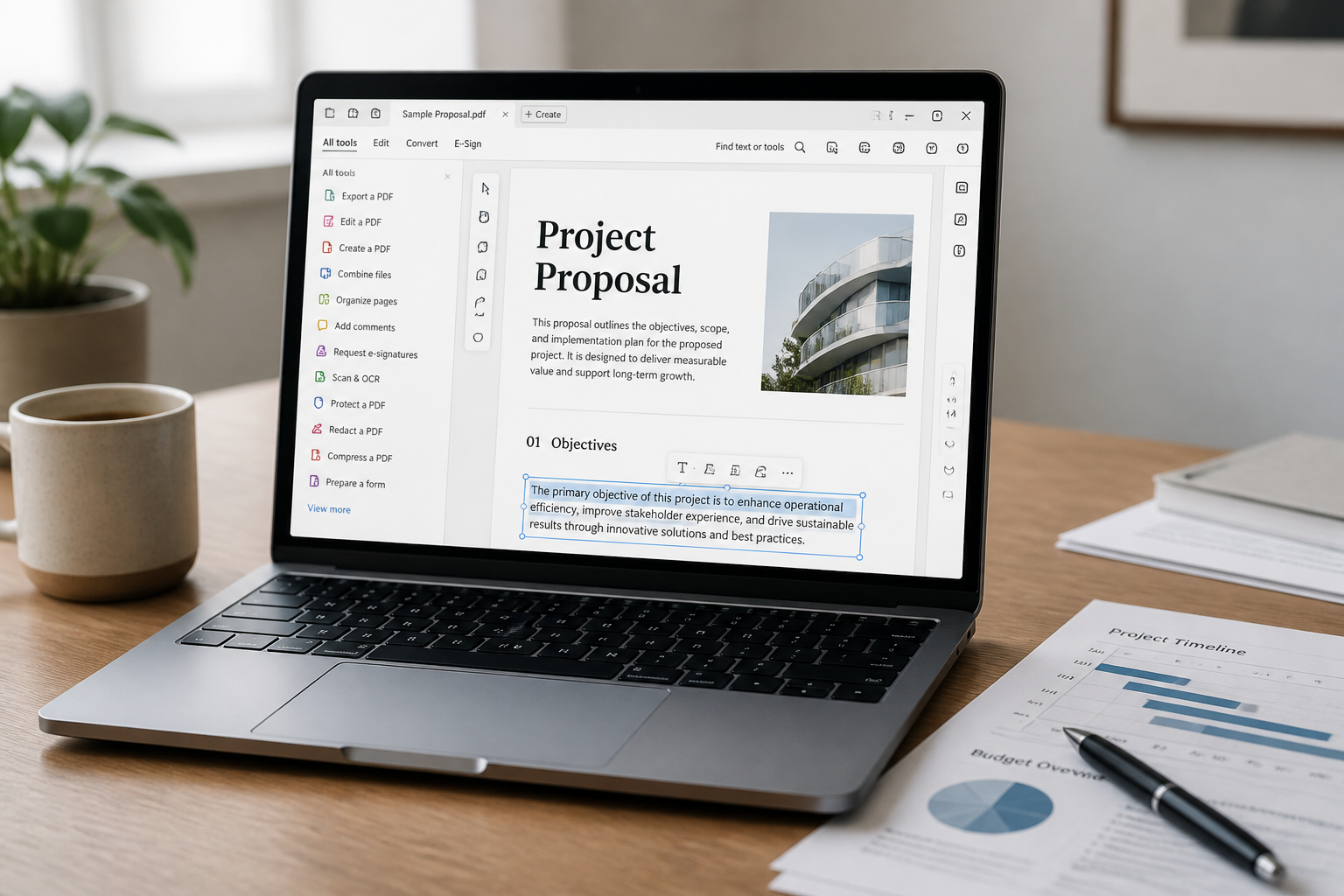
PDF files are the standard for sharing documents across nearly every industry. Whether you’re sending reports, storing receipts, or sharing drafts, you’ll eventually need to edit, merge, or reduce the size of these files. Yet, it’s often hard to know which free tools are reliable, safe, and easy to use. This guide covers top-rated free PDF tools—Smallpdf, ILovePDF, PDF24, LibreOffice Draw—and helps you choose the best tool for your needs, with a close look at privacy, batch processing, and platform differences.
Why Free PDF Tools Matter
PDFs are everywhere: contracts, cover letters, forms, ebooks, and more. Editing, combining, or compressing them used to require expensive software. Now, a growing number of robust free tools make these tasks easy and accessible for everyone.
Free PDF tools let you do more without investing in bulky desktop suites. Whether you’re a student, teacher, freelancer, or office manager, having the right tool is crucial for efficiency and convenience. Well-chosen free tools can save time, reduce file sizes for easier sharing, and organize large batches of documents fast.
But not all free tools work the same way. Some are web-based with privacy implications; others work offline for better data safety. Some are better for casual use, others support heavy workloads. Knowing the differences makes a big impact on productivity—and peace of mind.
Key PDF Tasks Explained
Before picking a tool, clarify what you need to do with your PDFs. Each major task has slightly different requirements and best-fit tools. Here are the most common actions:
- Edit: Add text, change images, annotate, or make direct changes to content.
- Merge: Combine multiple PDFs into one organized document.
- Compress: Shrink file size for easier emailing and online uploads.
- Split: Extract specific pages or sections into new files.
- Convert: Change PDFs into Word, Excel, JPG, or other formats.
Some tools excel at just one of these tasks, while others cover them all. Understanding your primary needs will narrow your options and prevent wasted effort.
Comparing Top Free PDF Tools
Let’s compare four of the most popular free PDF tools: Smallpdf, ILovePDF, PDF24, and LibreOffice Draw. Each one has strengths and limitations, shaped by how they’re delivered and what tasks they focus on.
The table below highlights core features across these tools so you can spot the key differences at a glance:
| Tool | Type | Main Features | Batch Processing | Privacy | Best For |
|---|---|---|---|---|---|
| Smallpdf | Online | Edit, Merge, Compress, Convert | Yes (limited, more with Pro) | Documents auto-deleted, limited control | Quick web tasks, casual use |
| ILovePDF | Online/Desktop | Edit, Merge, Compress, Split | Yes (Pro tier unlocks more) | 30-60 min retention, no full offline | Frequent merging/splitting |
| PDF24 | Desktop/Online | Edit, Merge, Compress, Scan, Convert | Yes, robust on Windows | Fully offline desktop mode | Privacy, heavy batch work |
| LibreOffice Draw | Desktop | Direct content editing, annotations | No (manual, file-by-file) | Never uploads, 100% offline | Edit-heavy needs, privacy focus |
Some tools allow you to get started right in your browser, while others require a desktop installation for their most powerful features. Choose based on your workflow, device, and privacy needs.
Smallpdf Overview
Smallpdf is a browser-based solution that covers all core PDF needs in a straightforward way. Its interface is clean, and it doesn’t require any installation for standard use. Available tools include editing, merging, compressing, converting, and e-signing.
The “free” tier puts daily limits on the number of documents you can edit or combine. If you need to batch-process more than a handful of files, consider alternatives. Smallpdf removes uploaded files from its servers after one hour, but note your documents do pass through the internet for processing.
Use Smallpdf if you want convenience and speed, can accept file limits, and your files are not highly sensitive. It’s perfect for handling non-confidential documents directly from any device with an internet connection.
ILovePDF Features and Use Cases
ILovePDF offers both web and desktop versions. The online version is similar to Smallpdf and covers editing, merging, compressing, splitting, watermarking, and converting files. There’s also a desktop app that increases privacy and batch capacities.
The initial free plan is generous, but larger jobs or bulk features may need a paid upgrade. The service keeps files on its system for up to one hour before deletion. If you’re regularly merging many files or splitting PDFs into precise segments, ILovePDF’s workflow tools save significant time.
ILovePDF is a good fit for users who frequently need to manipulate the structure of PDF documents and want the choice between browser convenience and more private local processing via its app.
PDF24: Ideal for Privacy and Batch Tasks
PDF24 is a comprehensive suite, best known for its free Windows desktop application. Its online offerings are also solid but come with the usual cloud-processing limitations. The desktop app is the standout choice for privacy because everything stays local, with no uploading or internet transfers.
It handles merging, splitting, compressing, converting, and direct page manipulation. Batch-processing is better here than with any online-only tool; you can queue up multiple files and perform the same action efficiently.
PDF24 is especially practical for users who handle sensitive internal files or want to automate large numbers of similar PDF tasks quickly and securely.
LibreOffice Draw: Powerful Editing, 100% Free
Unlike the others, LibreOffice Draw is not a dedicated PDF tool but a part of the larger LibreOffice suite. It opens PDFs as editable documents, letting you change text, fonts, add or remove images, and annotate directly on the page—actions beyond what most free online editors offer.
There’s a learning curve since Draw uses a different interface than typical PDF tools, but it’s worth mastering for deep editing. All actions are local on your computer, making it a top pick for those with strict privacy or offline-only needs.
Draw does not support batch processing natively; it’s meant for editing one document at a time. For ongoing, complex PDF edits—such as updating legal agreements or correcting typos—Draw stands out as a dependable, absolutely free choice.
Browser vs. Desktop PDF Tools
One key decision is whether to use browser-based tools or software you download and run on your computer. Each has clear pros and cons. Choose based on security needs, device type, and workload size.
- Browser tools: No installs, instant access from any device, good for occasional or less sensitive files.
- Desktop tools: Install once and work entirely offline, best for frequent use, larger jobs, or sensitive documents.
If you regularly work on public Wi-Fi or manage confidential information, desktop apps are usually safer. If you just need quick edits on non-critical files, browser tools are fast and simple. Combine both for flexibility.
Evaluating Privacy and Security
PDF files often contain sensitive data—company reports, personal information, or financial records. The way you process these files impacts your data privacy. Here are basic security questions to ask before choosing a tool:
- Where does the document processing happen—in your browser, or on company servers?
- How long do uploaded files remain on remote servers before deletion?
- Does the tool provide end-to-end encryption or explicit privacy statements?
- Is there an option to process everything offline?
- Do you control where files are stored after editing, merging, or compressing?
For documents with sensitive data, choose tools like PDF24’s offline desktop app or LibreOffice Draw, where nothing leaves your device. For everyday admin work, browser tools with strict auto-delete policies can be sufficient.
Batch Processing: Save Time on Repetitive Tasks
If you often handle dozens of PDFs—merging quarterly reports, compressing client invoices, or standardizing forms—batch processing is vital. Not all free tools support batch operations, and limitations in processing power or queue size can slow you down.
PDF24’s desktop app stands out here, letting you select multiple documents for simultaneous merging, compressing, or conversions. Many online solutions put a cap on how many files you can process at once, unless you upgrade to a paid plan.
Use batch processing for:
- Compressing folders full of scanned receipts monthly
- Merging end-of-year portfolios for student records
- Converting batches of Word invoices to PDF for archiving
Always check the tool’s specific limits before starting a bulk job to avoid hitting frustrating process caps midway.
Practical Examples and Step-by-Step Guides
Let’s walk through a few typical tasks, using free tools covered in this guide.
Example 1: Merging Multiple PDFs Using ILovePDF
- Go to ILovePDF.com and click “Merge PDF”.
- Upload your individual PDF files (hold CMD/CTRL for multiple selection).
- Arrange files in order by dragging thumbnails.
- Click “Merge PDF”. Wait for processing and download the combined document.
Example 2: Compressing a PDF for Email Using Smallpdf
- Navigate to Smallpdf.com and select “Compress PDF”.
- Drag-and-drop your document into the web page.
- Choose “Basic” for standard compression or “Strong” if you need a smaller file.
- Download the compressed PDF and check its new size before sharing.
Example 3: Editing Text in PDFs with LibreOffice Draw
- Open LibreOffice Draw, then use File > Open to select your PDF.
- Click text blocks directly to make corrections or updates.
- Add shapes or annotations as needed using the sidebar tools.
- Export the result as a new PDF when done, to avoid overwriting.
These steps can be adapted for more complex projects—just add advanced options or extra files as needed.
Choosing the Right Tool: Decision Criteria
The perfect PDF tool depends on your specific needs and work environment. Consider these factors to compare options and pick the best fit:
- Privacy: Do you need to keep documents 100% offline and confidential?
- Frequency: Will you use the tool daily, weekly, or only occasionally?
- Batch size: Should the tool handle dozens—or just a few—files at once?
- Task complexity: Is deep document editing or just organizing and compressing required?
- Platform: Are you working mainly on Windows, Mac, or a mix?
- User-friendliness: Do you value fast results, or are you willing to learn more advanced software?
For occasional, simple tasks, browser tools are most convenient. For ongoing, privacy-critical, or batch-heavy jobs, desktop apps are strongly recommended. Use the table below for more tailored suggestions.
| Need | Suggested Tool | Why |
|---|---|---|
| Editing text/images | LibreOffice Draw | Allows direct content changes, no internet needed |
| Fast merging/compressing | Smallpdf / ILovePDF | Quick web access, minimal setup |
| Batch processing, privacy | PDF24 Desktop | Handles large jobs offline, better for sensitive info |
| Occasional splitting/organizing | ILovePDF | Smooth web workflow, flexible splitting options |
Tips for Staying Productive with PDF Tools
To make the most of free PDF tools, try these practical strategies:
- Save templates or frequently merged files in a dedicated folder for quick access.
- Check output files after edits for quality, layout changes, or font shifts—this is especially true after compression.
- Use keyboard shortcuts when available in desktop apps to speed up repetitive actions.
- Regularly clear out downloaded files from online tools, especially if they contain sensitive information.
- If a tool frequently limits your activity, alternate between two services or install a desktop alternative.
Establish a routine to minimize time spent on document management. Free tools often integrate with cloud drives—take advantage of direct imports from Google Drive or Dropbox for smoother workflows if security needs allow.
Limitations and Workarounds
Most free PDF tools have usage caps, watermarks, or occasional ads. It’s important to understand these limitations to avoid slowdowns or missed deadlines:
- Daily or monthly limits on the number of files or actions
- Reduced resolution or compressed quality on free tasks
- Delayed processing, especially on weekends or peak times
- No guaranteed customer support for free users
Common workarounds include alternating between services (when one hits its limit) or breaking larger tasks into smaller steps. For ongoing needs, combining a desktop tool for heavy work and an online tool for lightweight actions maximizes flexibility with zero cost.
Getting More from PDF Tools with Integrations
The best free PDF tools support a variety of file storage and transfer options. Look for integrations that support your workflow, especially if you use cloud storage or collaborative tools:
- Google Drive and Dropbox integration for one-click imports/exports
- Email-to-PDF features for automating invoices or receipts
- Direct conversion to office formats (Word, Excel, PowerPoint)
Many tools offer browser extensions that streamline everyday tasks. Evaluate which add-ons fit your habits and invest a few minutes to set them up if you handle PDFs daily.
With a little planning, these restrictions rarely disrupt regular use. Having a backup option, like a desktop tool or alternative service, ensures you can always finish the job even if your preferred tool hits a wall.
- Read the tool’s FAQ or pricing page before starting a big project.
- Save copies of original files in case you need to retry edits using another service or restore changes.
- If your workflow involves many files, seek out tools with clear batch processing capabilities—PDF24 particularly excels here for offline use.
- Be prepared to divide large PDFs into multiple smaller tasks if a web app imposes file or page limits.
To avoid running into these challenges:
Common limitations include upload caps, page limits, and usage restrictions (often a set number of free actions per hour or day). Some tools watermark output files unless you create an account or upgrade. Others restrict access to advanced editing features—such as font replacement, batch processing, or secure redactions—to paid versions.
While free PDF tools are genuinely useful, most come with notable constraints. Recognizing these early can prevent frustration and ensure you don’t lose work partway through a task.
How to Spot and Avoid PDF Tool Limitations
Adopting a workflow where you quickly determine the sensitivity and complexity of a document before choosing a tool will help you stay organized and safeguard your information. Over time, having desktop and browser-based utilities at hand covers almost every scenario, from the quick fix to advanced editing tasks.
- Combining Receipts or Invoices: Use a desktop utility like PDF24 to batch-import scans, merge them into a single PDF, and save directly to a secure folder without internet uploads.
- Signing and Sending Forms: Download the PDF and use Smallpdf’s “eSign PDF” to apply your signature from any device. Save and email or upload as needed, without printing.
- Compressing Large PDFs for Email: If size is a barrier, run the file through Smallpdf or PDF24’s “Compress PDF” before attaching to emails to minimize delivery failures.
- Editing and Exporting Reports: Open the report in LibreOffice Draw for robust text changes, then export it as a new PDF, preserving formatting and hiding edits from recipients.
Efficient document management isn’t just about picking a tool—it’s about designing clear workflows that minimize friction. Here are some practical routines for common PDF scenarios, showing how different tools can work together for smoother results.
Effective PDF Workflows for Everyday Tasks
Ultimately, matching your privacy needs with the right tool is key—not every workflow justifies the same level of caution, but for sensitive content, err on the side of local processing and strong file protection.
- Prefer desktop apps like PDF24 and LibreOffice Draw for local processing.
- Double-check online services’ privacy statements and retention periods.
- Avoid uploading documents containing personal identifiers, signatures, or business secrets to unknown online tools.
- Use password protection or file encryption (e.g., 7-Zip, VeraCrypt) for sensitive PDFs before storing or sending them.
For tasks involving confidential data, choose tools with robust privacy policies and end-to-end encryption. Desktop PDF software keeps your documents local, allowing you to edit, merge, or compress without transmitting files over the internet. If you must use an online tool, consider the platform’s data handling guarantees and whether you’re able to explicitly delete files after processing.
Handling confidential PDF documents requires special care—especially when using free tools. Many browser-based editors and compressors process files online, meaning your documents are temporarily uploaded to a company’s server. While reputable services claim to delete files after a short retention window, there are risks if you’re handling sensitive financial, legal, or personal data.
Securing Sensitive Documents During PDF Workflows
| Task | Best Free Tool(s) | Browser/Desktop | Limitations |
|---|---|---|---|
| Merge PDFs | PDF24, ILovePDF | Desktop (PDF24), Browser (ILovePDF) | Browser: file number limits; Desktop: requires install |
| Edit Text | LibreOffice Draw, PDF24 | Desktop | Layouts can break; learning curve |
| Add Signature | Smallpdf, ILovePDF | Browser | Cloud processing; session limits |
| Compress PDF | Smallpdf, PDF24 | Browser, Desktop | Browser: size/upload limits |
| Extract Pages | PDF24, ILovePDF | Desktop (PDF24), Browser (ILovePDF) | Advanced features in desktop; browser limits |
For merging and batch processing, PDF24’s desktop suite stands out due to its ability to combine many files without uploading them online. In contrast, online tools may require manual uploads and impose file size or page count restrictions. If privacy or processing large documents is a concern, examining the trade-offs below can help you choose wisely.
If your needs are limited to adding signatures, rearranging pages, or inserting a quick annotation, most browser-based tools like Smallpdf and ILovePDF suffice for occasional use. However, when it comes to more advanced features such as editing text within a PDF, desktop-based options like PDF24 and LibreOffice Draw demonstrate clear advantages by supporting granular edits and working offline.
Not all free PDF tools offer the same level of performance or convenience for every use case. Determining the right option depends heavily on your specific tasks. Here’s a closer look at where popular tools shine—and where they might come up short.
Common PDF Tasks and Which Tools Excel
Always choose tools based on your needs for privacy, functionality, and workflow compatibility.
- Best for quick edits: Smallpdf, ILovePDF (online, moderate privacy)
- Best for privacy: PDF24, LibreOffice Draw (desktop, offline)
- Best for combining or compressing PDFs: PDF24, ILovePDF, Smallpdf
Is my data secure when editing PDFs online? Privacy policies vary significantly. For highly sensitive documents, use open-source or offline desktop tools where you retain full file control. Only upload files to online tools you trust and verify they use secure (HTTPS) connections and delete files after processing.
Do free PDF editors add watermarks? Many free online editors will add a watermark or limit the number of edits unless you create an account. However, reputable desktop tools like PDF24 or LibreOffice Draw do not add watermarks, making them good choices for watermark-free edits.
Free PDF tools are increasingly capable, but users commonly have questions before adoption. Here are clear answers to some of the most frequent concerns:
Frequently Asked Questions About Free PDF Tools
Summary and Recommendations
Free PDF editing, merging, and compressing tools can vastly improve your document management for zero cost. Start by matching your needs: Smallpdf and ILovePDF are perfect for quick, occasional online tasks, and are easy to use anywhere. PDF24’s desktop app offers top privacy and batch power, while LibreOffice Draw is ideal for deep offline editing.
Decide based on privacy, frequency, task complexity, and platform. Always check output quality and safeguard sensitive data with offline tools when needed. With the right mix of free PDF tools, you can keep your document workflow organized, simple, and secure—no subscriptions required.
Editorial note: This guide is for informational purposes and reflects general tool features as of the publish date.